
Introduction
Getting the data
Preparing the data
Introduction
The Viatom O2Ring, which I have used, is a biofeedback device that can determine the oxygen saturation level over a longer time period (24 h). It is wearable like a ring for a finger (or thumb) what makes it quite comfortable to wear it 24h over day and night.
Background: Since sleep apnoe is considered a risk factor for atrial fibrillation by Western medicine, I was interested in what my oxygen saturation levels were during sleep, so I decided to use a small device to measure them and chose the Viatom O2Ring.
Getting the data
The ViHealth app that comes delivered with the O2Ring device displays the determined values in a very clear way, but if there is still need having the data for your own analysis, it is also possible to export them as a CSV (comma separated values) file (.csv). So at least my two main criterias for a biofeedback device, beside that it must work in general, have been met, useful presented and exportable data.
As follows it is shown how the data export for this device works:
Open the ViHealth app and …

Preparing the data
- Open Microsoft Excel (here Microsoft Excel 2013 in german is used) and click on the “data tab” there click “from text”.

- Choose your CSV (.csv) file you have exported via the ViHealth app.

- Follow the instructions of the import assistant and remind that the data contains headlines and is separated bei commas.

- Now the data from the CSV File is imported to Microsoft Excel and can be used for further analysis.

- Clean out artefacts (corrupt data) that might have been added by the device while the seconds when the device was removed and couldn’t measure correct data anymore.

Hint:
My MS Excel 2013 (German) version is not able to resolve the timestamp (at Column A) created by the device into a date and time value automatically. But we can use a little trick, as I will describe next, to get this done.
To determine the time and the date values from an expression like:
“02:36:07 AM Jan 31 2021”
in MS Excel e.g. at the Cell A2 we need the following formulas:
| MS Excel 2013 (English) | MS Excel 2013 (German) | |
| Time | =TEXT(LEFT($A2;11);”hh:mm:ss AM/PM”) | =TEXT(LINKS($A2;11);”hh:mm:ss AM/PM”) |
| Date | =TRIM(TEIL(RIGHT($A2;11);5;2))&” “& MID(RIGHT($A2;11);1;3) &” “&RIGHT($A2;4) | GLÄTTEN(TEIL(RECHTS($A2;11);5;2))&” ” &TEIL(RECHTS($A2;11);1;3) &” “&RECHTS($A2;4) |
| Date & Time | =TRIM(MID(RIGHT($A2;11);5;2))&” ” &MID(RIGHT($A2;11);1;3) &” “&RIGHT($A2;4) & ” ” & LEFT($A2;11) | =GLÄTTEN(TEIL(RECHTS($A2;11);5;2))&” ” &TEIL(RECHTS($A2;11);1;3) &” “&RECHTS($A2;4) & ” ” & LINKS($A2;11) |
After we have extracted the wanted values there is still a problem left, MS Excel 2013 (as I have experienced it does not accept/upate the date time format for the extracted data until copying the calculated data by the “as value” function to another column and then double clicking on every single cell (what is not acceptable in my eyes).
Here is another hint how to fix that problem manually:
- Copy the calculated data by the “as value” function to another new date/time column.
(Note: This copies only the data to the new column, not the formulas.) - Format the new column in a date/time format you want to have it.
(You will not see the result yet.) - Mark your new date/column and use the “text to columns” function in the Data tab.
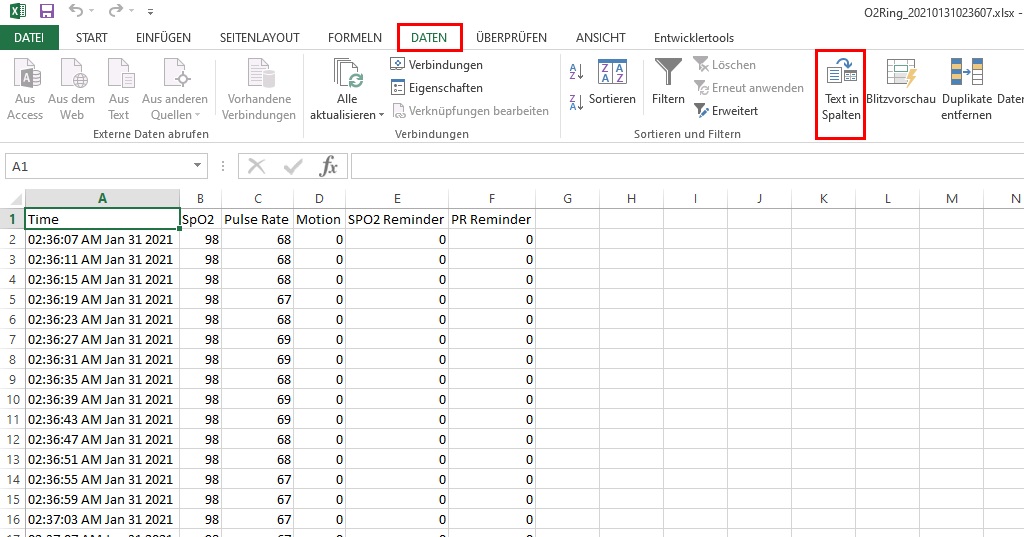
- Follow the next two steps shown in the figure below.
(Note: We “missuse” the “text to columns” function here for our own purposes.)

- Now your data should be formatted in the right way and recognized correctly by MS Excel as a date/time value.

You can download an example file here:
Please always remind the Disclaimer as a condition for the use of this blog.
 Get rid of AFib Blog